Local keyword highlighting for Chrome and Edge
See the words that matter
When a page is long, Fast Keyword Highlighter marks words from your own lists in color, so you can spot what matters and keep your place. Free on Chrome and Edge. The page stays on your device.
No account. No network requests from the extension. Privacy policy.
See it work
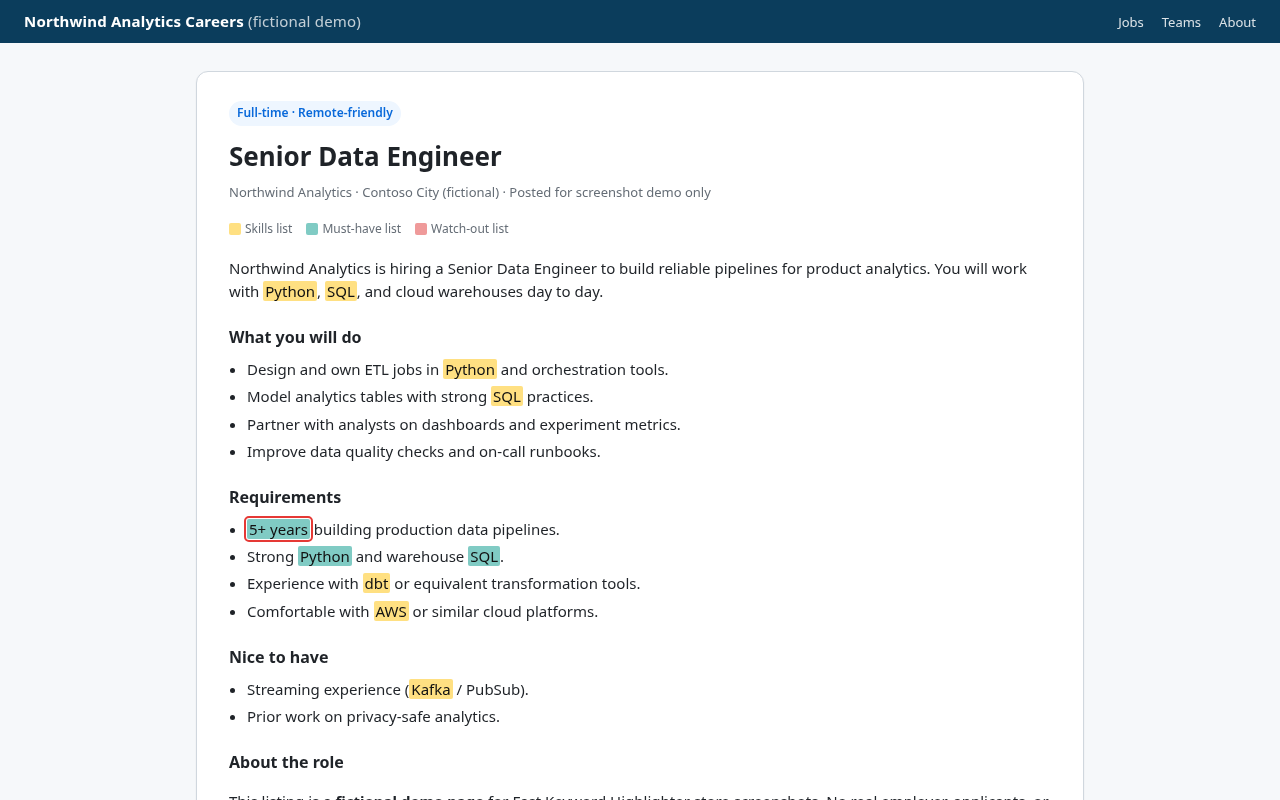
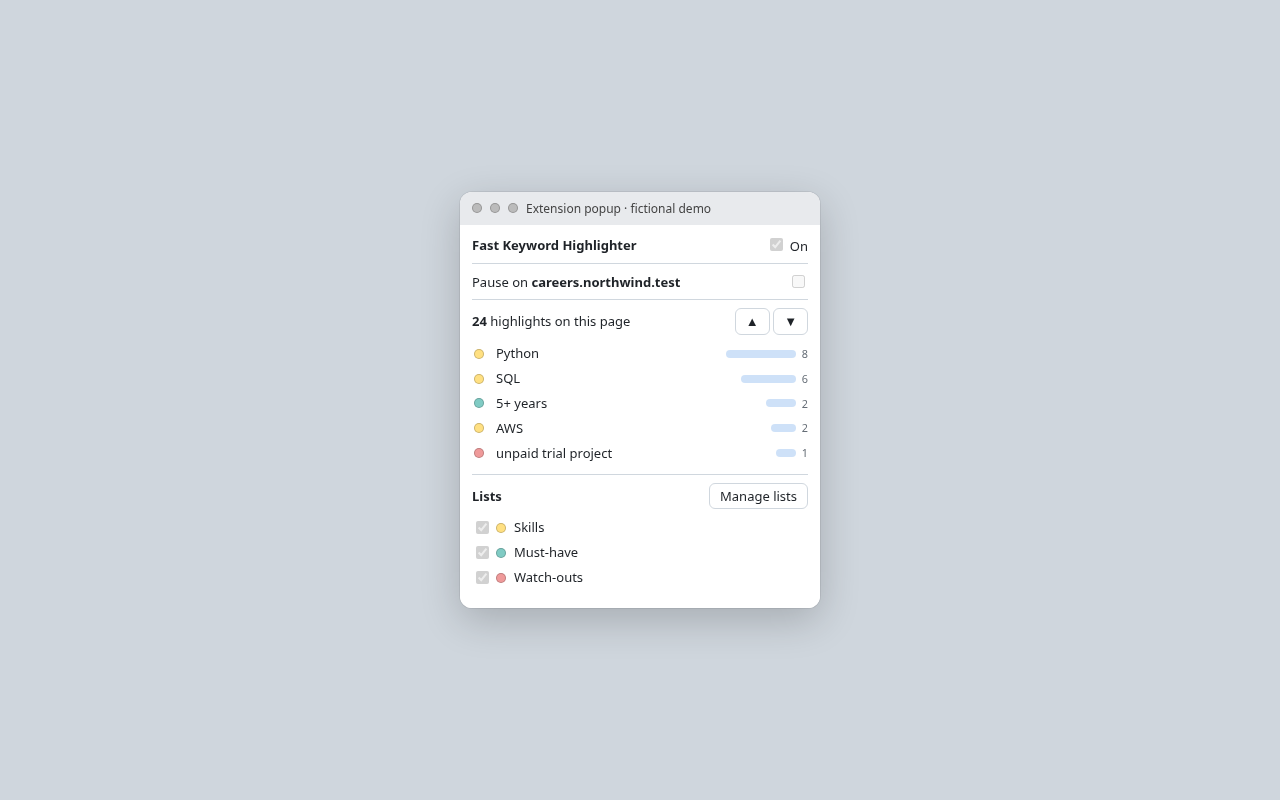
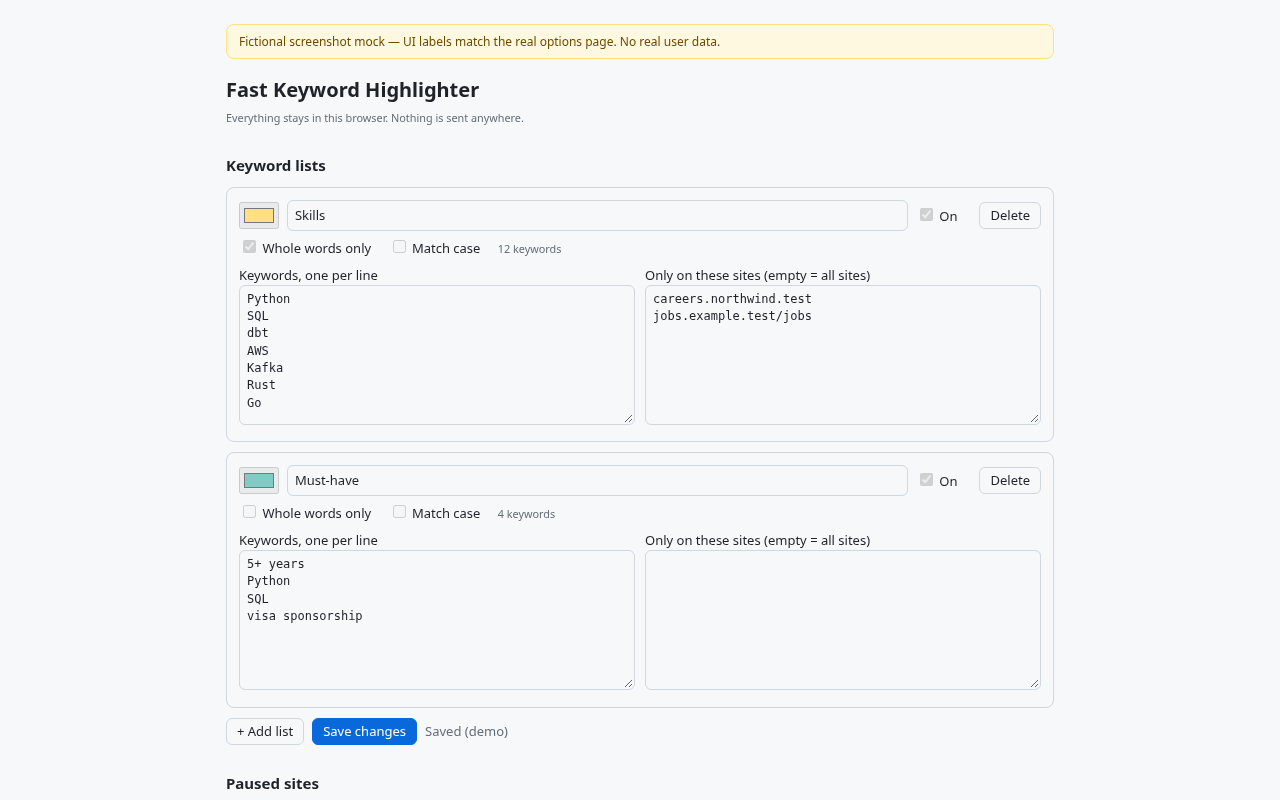
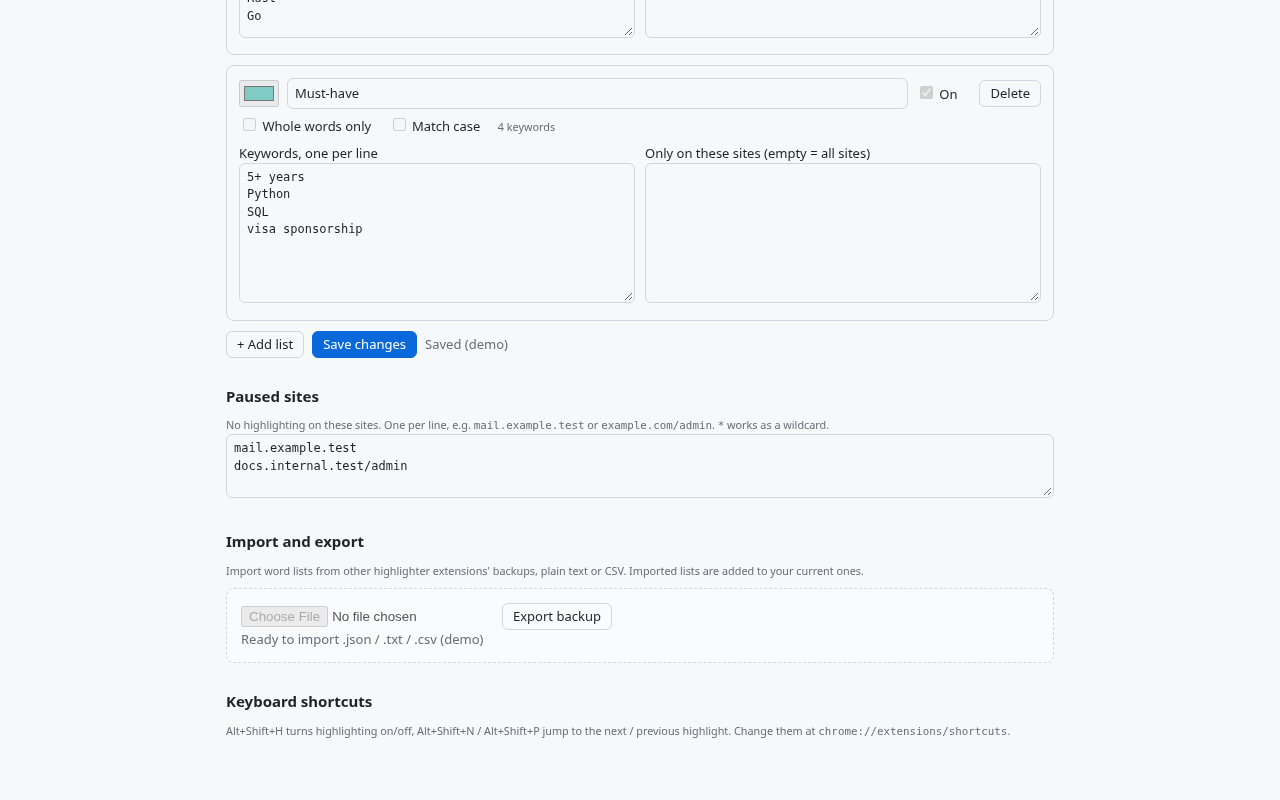
The same screens shown on the Chrome Web Store. The sample posting is a demo page; the highlighter UI is the product.
Who it’s for
Recruiters and job seekers
Scan a long posting and see skills, must-haves, and watch-outs in different colors, so you can stay with the sentence you are reading.
Content reviewers
Keep sensitive terms on a list and notice them as you read, instead of hunting for them line by line.
SEO and content marketers
Check whether the keywords you care about show up, and which of them show up most on the page.
Researchers
Move through a dense page by jumping to the next match, and come back to the sentence you left.
What you can do
Color-coded lists
Each list has its own color, on/off switch, whole-word match, and case-sensitive option.
Site limits and pause
Limit a list to sites, with subdomains, path prefixes, and * wildcards. Pause a site from the popup or with paused-site rules. Single-page apps are checked again when the URL changes.
Import and export
Import lists from another highlighter’s backup, plain text, or CSV. Imported lists are appended. Export a full JSON backup of your settings and lists.
Jump, with shortcuts
The toolbar badge counts highlights. The popup lists the top hit words. Jump with the popup buttons, or with Alt+Shift+N and Alt+Shift+P. Alt+Shift+H toggles highlighting. Change the shortcuts in the browser.
Local permissions only
Two permissions: storage, for lists and settings on this device, and activeTab, for the current site name and an on-page hit count. Content scripts run on http and https pages to highlight locally. Inputs, editable regions, and code blocks are skipped by default. Open Shadow DOM is supported.
Three steps to start
- 1
Pin the extension and open the popup, then choose Manage lists.
- 2
Add a list, paste keywords, pick a color, and save.
- 3
Optional: set “Only on these sites”, or pause the current site from the popup.
A lab example from the store listing
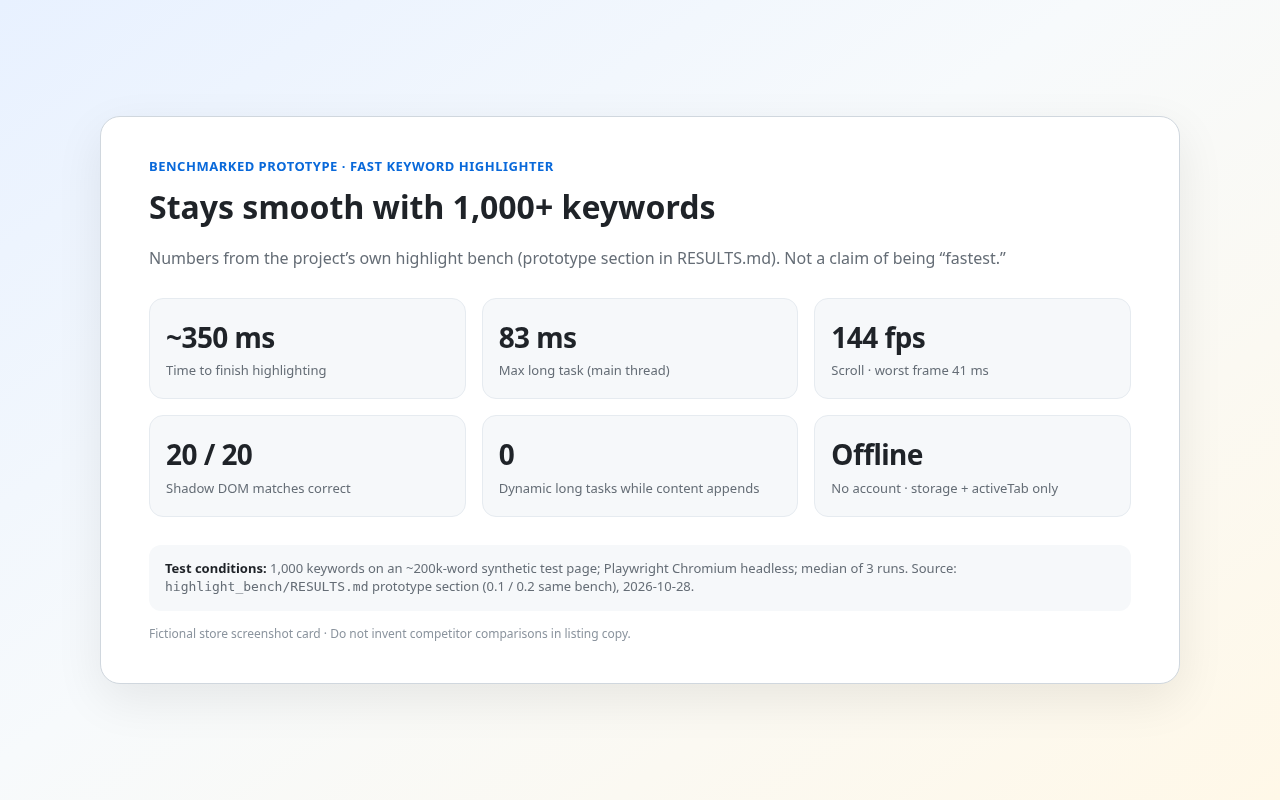
These figures are the lab example printed on the Chrome Web Store listing: a ~200,000-word test page, 1,000 keywords, about 350 ms to finish highlighting, a longest task near the page-load baseline (~83 ms), scroll around 144 fps, and 0 long tasks when content was appended. They describe that test. They are separate from any count of people using the extension.
Questions
- Do I need an account?
- No. Install it, pin the icon, and open the popup to add a list. There is no sign-in.
- What about privacy and permissions?
- The extension works on your device. It does not make network requests, and it does not upload the page or your lists. It asks for two permissions: storage, to save lists and settings locally, and activeTab, to show the current site name when you pause and to request a hit count for the tab you opened. Content scripts run on http and https pages only, to read visible text and highlight matches locally. Read the privacy policy.
- Can I limit a list to some sites, or pause highlighting?
- Yes. Each list can be limited to specific sites, including subdomains, path prefixes, and * wildcards. Leave that field empty and the list runs on every site. Pause the current site from the popup, or keep paused-site rules in settings. If a single-page app changes its URL, those rules are checked again.
- Can I import lists from another highlighter?
- Yes. Import word lists from another highlighter extension’s backup, from plain text, or from CSV. Imported lists are added onto the lists you already have. You can export a full JSON backup of your settings and lists.
- What are the shortcuts?
- Alt+Shift+H turns highlighting on or off. Alt+Shift+N jumps to the next match, and Alt+Shift+P jumps to the previous one. Change them on the browser’s extension shortcuts page. The popup also has next and previous buttons.
Add it to your browser
Free. Your lists stay in this browser.